
Features
Everything M-Agent does, explained in full. If you want step by step setup instructions instead, see How It Works.
One Dashboard For Every Network
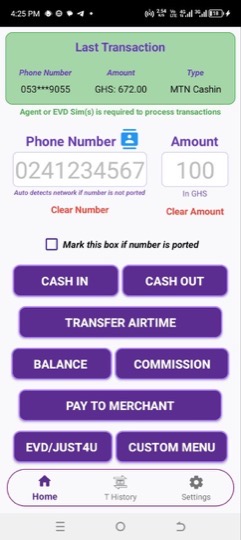
M-Agent puts MTN, Telecel and AirtelTigo on a single screen. Enter the number and the amount, tap the transaction, and M-Agent works out which network the number belongs to and dials accordingly.
There are no short codes to memorise and nothing to switch between customers. If a number has been ported, tick the box and M-Agent uses the network you specify instead.
Cash In, Cash Out, Transfer Airtime, Balance, Commission, Pay To Merchant, EVD and Just4U all sit on that one screen, alongside any custom menu you have built.
Smart Navigation
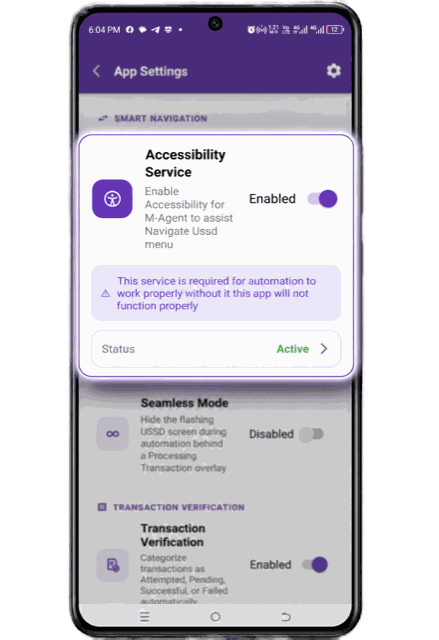
Smart Navigation is what moves through the menu on your behalf. You confirm the details once, and M-Agent handles the steps that used to be tapped by hand.
At the PIN stage it stops and hands control back to you. You enter your PIN yourself. The app will never see, store, or touch your PIN in any way.
Seamless Mode
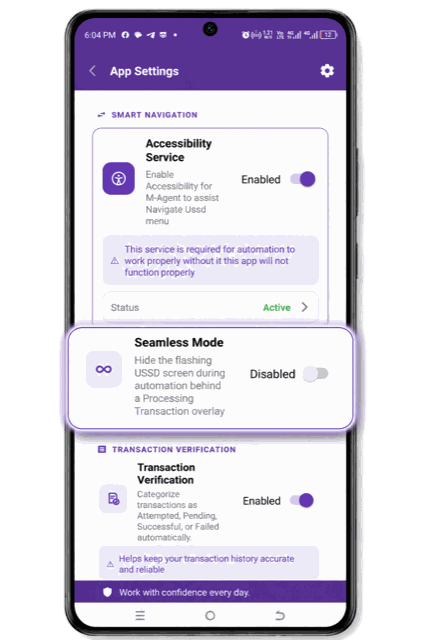
While the menu runs, the phone's own screens flash on and off. Seamless Mode hides them behind a single Processing Transaction overlay, so the customer sees one calm screen and you have nothing to tap by mistake.
Contact Picker and Number Suggestions
Tap the contact icon above the number field to pull a customer straight from your saved contacts.
For customers who are not saved, Suggest Numbers offers people you have served before once you have typed six characters. Either way, the number is entered correctly once and reused after that.
Complete Transaction History
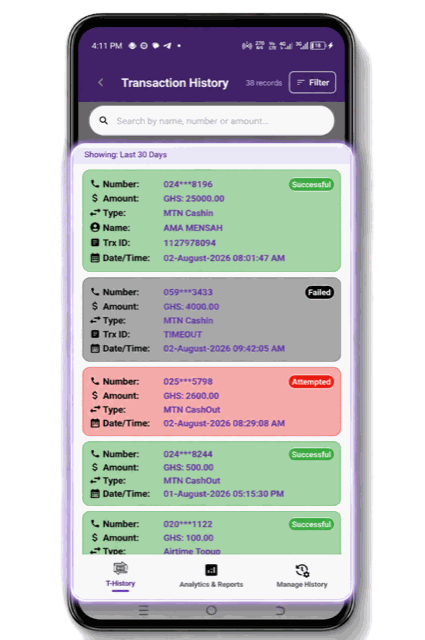
Every transaction is recorded automatically, with the customer name, phone number, amount, transaction type, transaction ID, and the date and time.
Search by name, number, or amount. Filter by transaction type, by status, and by date range, whether that is today, the last seven days, the last thirty, or dates you pick yourself.
Tap a record to open it and copy the customer's number or the transaction ID straight from the dialog.
This is what replaces the notebook. There is nothing to write, nothing to lose, and nothing to decipher later.
Transaction Verification
Every record carries a status, shown in colour.
-
Attempted
Manually cancelled, or the network dropped before the transaction reached the pending stage.
-
Pending
Processed on your side, waiting for the network to confirm.
-
Successful
Confirmed by the network.
-
Failed
No confirmation arrived within ten minutes, or the confirmation reported a failure.
Telecel Cash Out is the one transaction the customer completes on their own phone. For those, M-Agent sends you a notification once it has recorded and verified the transaction, whether the app is open or in the background.
Message content is never stored, shared, or read by the app. It is used only to determine whether a transaction succeeded or failed.
If a record was not verified automatically, press and hold it to try again. If it still cannot be verified, you are offered the option to mark it Successful yourself. A transaction M-Agent has already verified from a network confirmation cannot be changed manually.
Analytics and Reports
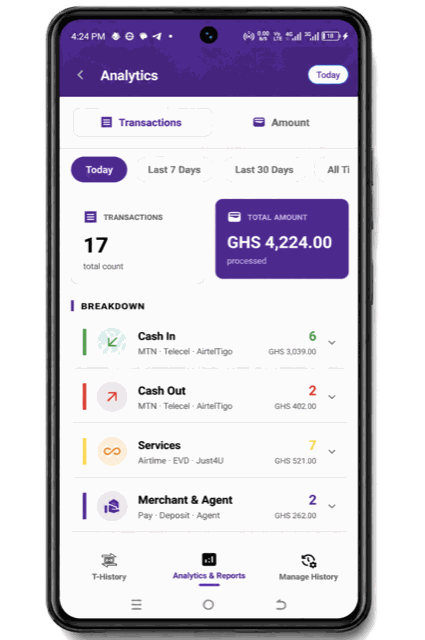
See your transaction count and your total value for today, the last seven days, the last thirty days, or all time.
Underneath, your activity is broken down into Cash In, Cash Out, Services covering Airtime, EVD and Just4U, and Merchant and Agent covering Pay, Deposit and Agent transfers. Tap any group to expand it and see the individual items inside.
Custom Menu Builder
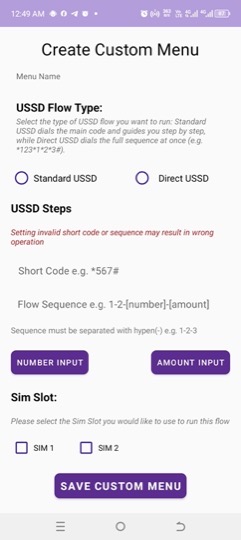
Build a menu for any workflow M-Agent does not cover by default.
Name it, choose whether it is a standard flow with a short code followed by menu steps, or a direct flow dialled in one string, then set the sequence and choose the SIM slot. Placeholders drop the customer's number and the transaction amount into the right positions at the moment of the transaction.
Once saved, it appears on your home screen and runs as fast as any built in option. Press and hold to edit or delete it.
Dual SIM Support
Map each network to a SIM slot once. MTN, Telecel and AirtelTigo for mobile money, and MTN, EVD, Telecel and AirtelTigo separately for airtime transfer.
After that, every transaction dials from the correct line on its own, and records from all your lines sit in the same history.
Lock Protection
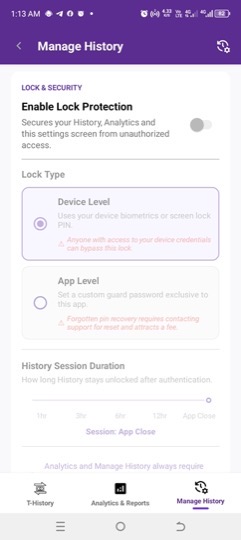
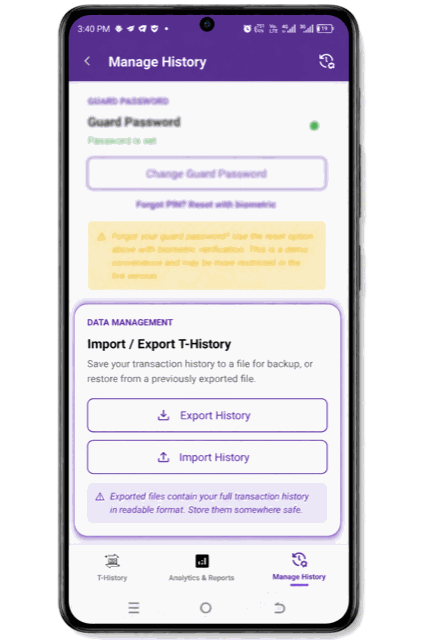
Your history and analytics show your whole business. Lock Protection puts a lock in front of them, and in front of the Manage History screen.
Choose Device Level to unlock with your phone's own biometrics or screen lock PIN, or App Level to set a separate Guard Password just for M-Agent. Forgetting an App Level password means contacting support, and a small fee applies.
Data Retention
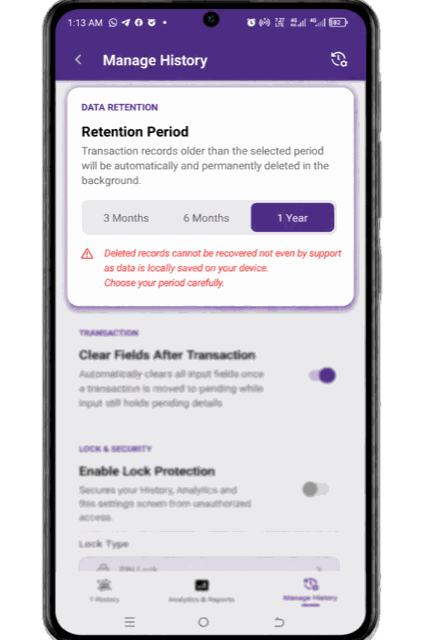
Choose whether M-Agent keeps records for three months, six months, or a year. Older records are deleted automatically in the background so storage stays under control.
Because your data lives on your own device, deleted records cannot be recovered by anyone, including us. Export anything you want to keep beyond your chosen period.
Import and Export History
Save your full history to a file for backup, or to move it to a new phone. Exported files are protected, so a file that has been altered will not import. When restoring, choose whether to merge the file with your existing records or replace them.
Offline Access
M-Agent works completely offline. Your records live on your device and remain accessible with no connection at all.
Keep Screen Awake, Themes, and Field Sizing
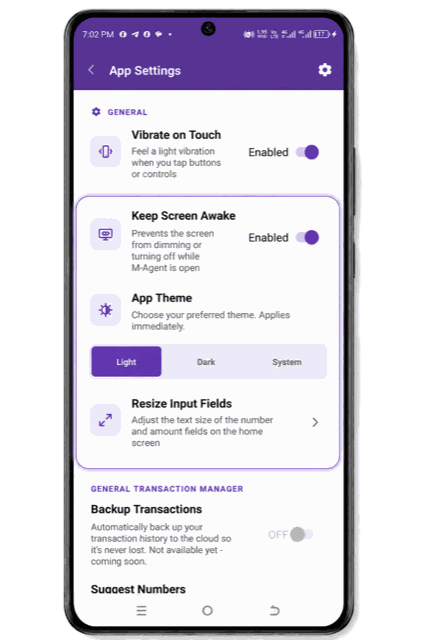
Small things that matter across a long day. Stop the screen dimming while M-Agent is open. Switch between light, dark, and your system theme. Resize the number and amount fields with a live preview until they read clearly at a glance.
Coming Soon: Cloud Backup
Automatic backup of your transaction history to the cloud, so a lost or damaged phone does not take your records with it.